Mathematica 5.2
Part I – Calculation Engine
Reviewed by Mike Hubbartt
www.wolfram.com $1,880 US and Canada (standard), $895 USD (academic), $139 USD (student) US/Canada: 1-800-965-3726 International: +1-217-398-0700 SYSTEM REQUIREMENTS: 64 bit: Mac OS X 10.4 on G5 CPU 32 bit: Mac OS X 10.4/10.3/10.2 on G5/G4/Intel CPU 512 MB RAM 1.7 to 2.3 GB drive space DVD-ROM or CD-ROM Supported Operating Systems: Mac OS X, Windows, Linux, Sun Solaris, HP-UX, AIX and SGI IRIX. Strengths: Complex calculation support (Algebra, Trigonometry, Calculus, Linear Algebra, Differential Equations), video processing, formula graphic rendering, Java support, tons of good online reference material, universal binary. Weaknesses: Version 5.2 only offers 32-bit support for Intel processor Macs, expensive for non-students. |
|


Basic math skills are needed when making change for product purchases at the store, dealing with ingredient measurements for food recipes, creating and following a monthly household budget, balancing a checkbook, and planning costs for a vacation. Yet many people dislike mathematics and drop any pretense at maintaining their current skills or learn more once they leave school.
What can you do to improve your math skills? Why not put your Mac to use? A number of companies have released a diverse variety of math products for the Mac, and the package that stands at the head of the math class is Wolfram Research’s Mathematica.
Stephen Wolfram founded Wolfram Research in 1987 and released 1.0 version of Mathematica in June of 1988. Version 1.0 was well received by members of the scientific and technical communities and was one of the main applications released for the NeXT computer – Steve Job’s other computer company. And Wolfram Research has continued their support of our platform, being among the first (February, 2006) to update their product to run natively on Intel-based Macs.
Wolfram Research refers to their product as a “technical computing system, ” and with good reason. Mathematica features are useful in mathematics, science, engineering, desktop publishing and programming fields. Now that is a powerful application! Since Wolfram’s website states there are have several million Mathematica users, we at macCompanion figured there might be more than a few of our readers that are interested in a review of this powerful product, so let’s begin.
Getting Started
When I received Mathematica 5.2 in the mail, I did something I’ve never done before: I opened the box, set the software aside and read the manuals. Gasp! A Technical Writer that actually read a product manual? Yep. And I’d recommend other people do that as well, even those upgrading from earlier versions of the product. And take time to bookmark www.wolfram.com, as there is a ton of good information on Mathematica.
After reading the documentation, I installed and launched the software and saw this:


This is where you work: information is entered in documents (also called notebooks - on the left) to enter a formula (with math symbols selected from the smaller window on the right). Let’s use Mathematica to solve a few math problems.
Algebra
Let’s do a few you might see in a college Algebra class, starting with a simple factoring problem. I want to factor a^2 – b^2 (a squared minus b squared).
I enter Factor[a^2-b^2] and press Shift-Enter and Mathematica generates the results (see Figure 1).
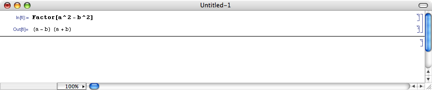
Figure 1 – Algebra Factor Example
Simple, and what you’d expect from a calculation engine.
Now to solve a trinomial, I enter Factor[8x^2 + 22x +15] and press Shift-Enter and the results are in Figure 2.
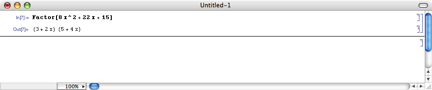
Figure 2 – Trinomial Example
Let’s solve a linear equation. The solution for (2n+3)(6n-1)-9 = 15n^2 – (3n-2)(n-2) is shown in Figure 3.

Figure 3 – Linear Equation Example
Now we’ll plot a graph with Mathematica.
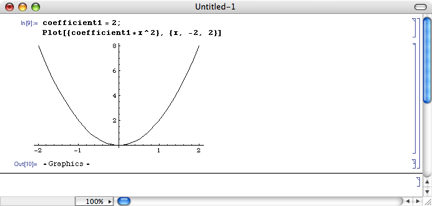
Figure 4 - Graphing
Kinda makes you miss the days of using graph paper in class, doesn’t it? No? I didn’t really think it would.
Let’s do some Trig. I enter Plot[{Sin[x]}, {x, -10, 10}] and we get:
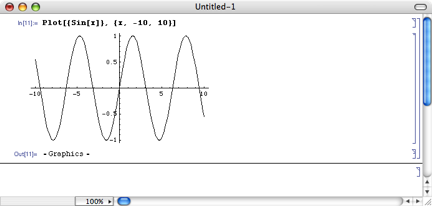
Figure 5 – Trigonometry – Plotting Sin
What I wouldn’t have given for this program when taking Trig in High School…
As you see, the hardest part of using Mathematica is determining how to enter the values to solve. And that really is logical and intuitive, and numerous examples make it a breeze to become comfortable with the product.
So enough with the calculation engine aspect of Mathematica. So much for the simple stuff, next month we’ll cover more complex graphing capabilities in Mathematica.